
Gaming Laptop Overheating: A Real Repair in St Andrews
Gaming Laptop Overheating: A Real Repair in St Andrews
Gaming Laptop Overheating: A Real Repair in St Andrews
This Medion gaming laptop came into our City Road shop on a Friday in May, booked in for overheating. The booking asked for it to be cleaned out and its thermal paste replaced. Once we had it open, the fans and the heatsink were choked with dust.
We got started that same afternoon. It was ready to collect by early afternoon on the Saturday, and the customer picked it up less than an hour later. The bill came to £89.
What We Found Inside
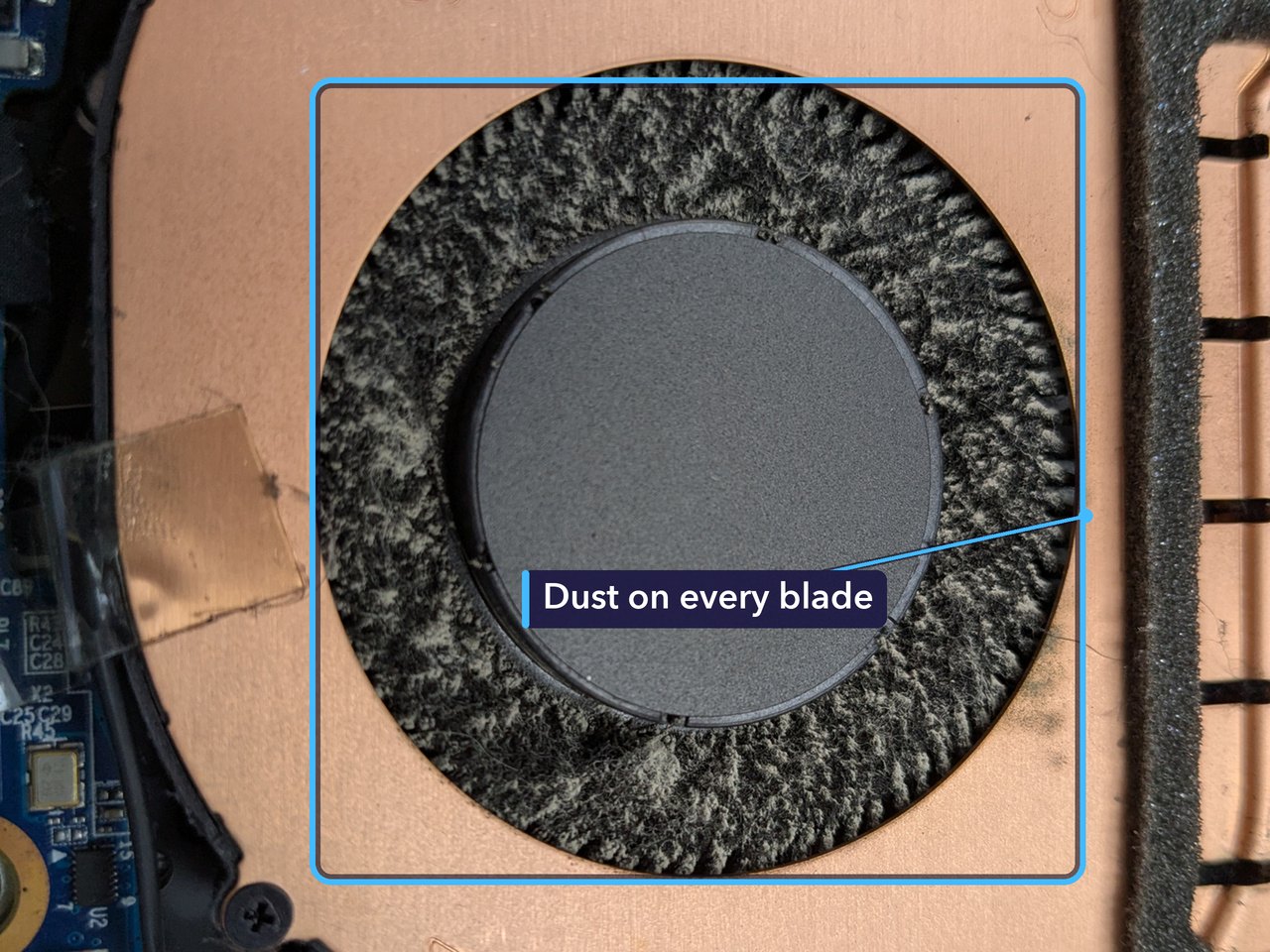
A gaming laptop pulls air through itself to keep cool, and the dust in the room comes in with it. It collects on the fan blades first. Here it had built up into a thick grey felt, and a fan like that can’t push as much air as it should.
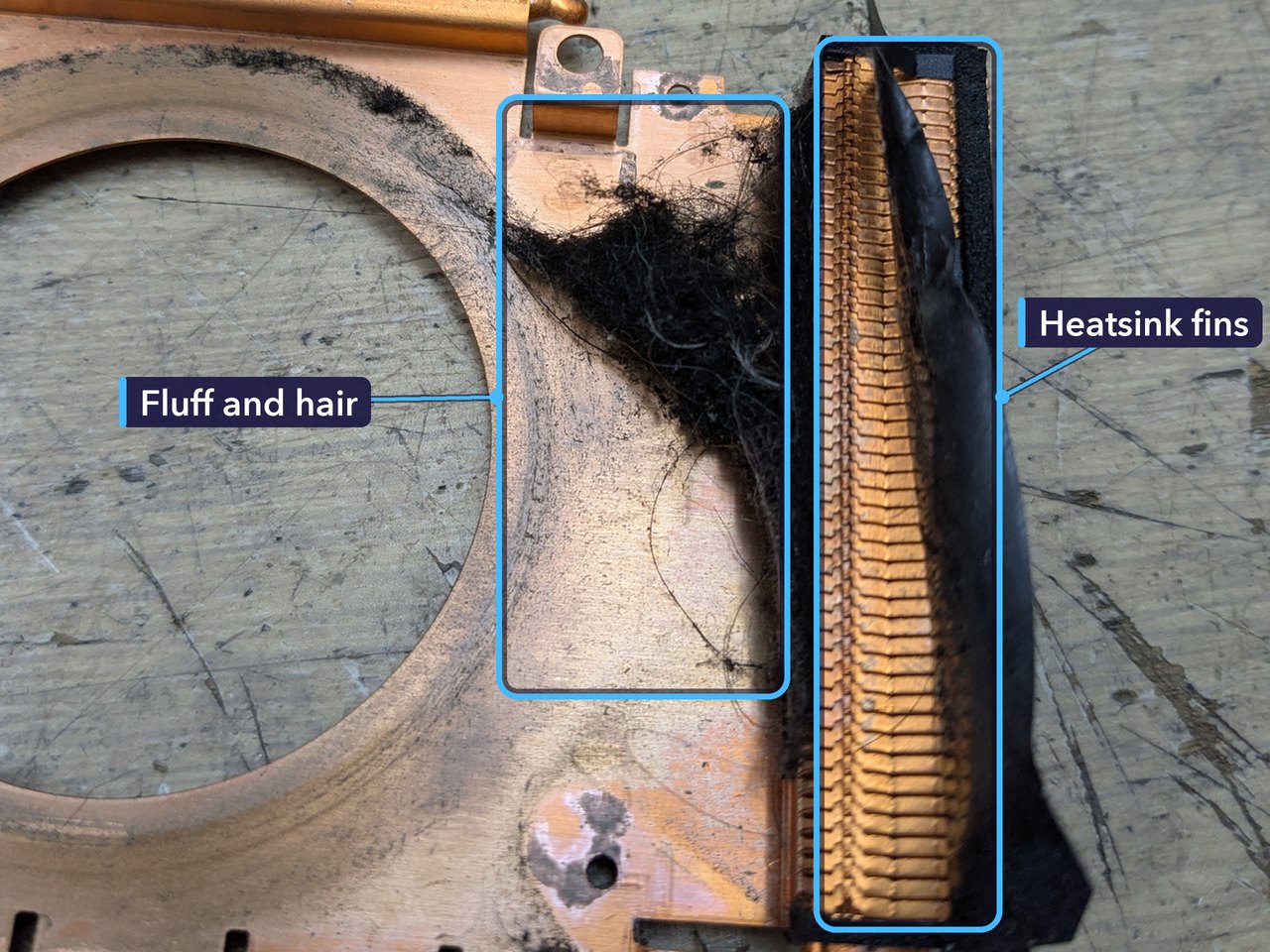
The heatsink was just as bad. Its thin metal fins sit right where the air has to pass, and fluff had caught on them and packed down into a mat. With the fins blocked, the air can’t carry the heat out.
Why a Gaming Laptop Overheats
Gaming laptops make a lot of heat. A game works the processor and the graphics chip hard at the same time, and the case they sit in is slim.
Copper heat pipes carry that heat from the chips to the fins, the fans blow air through the fins, and the warm air leaves through the vents. Dust gets in the way. It clogs the fans and the fins, so less air gets through and the chips run hotter. When they get too hot, the laptop slows itself down to protect them, and games start to stutter. If that isn’t enough, it shuts itself off.
Thermal paste is the other half. It’s the thin grey layer between each chip and the cooler’s copper plate, filling the tiny gaps so heat can cross over. Over the years it can dry out. Cleaning out the dust and replacing the paste, which is what this laptop was booked in for, deals with both.
For the Technically Curious
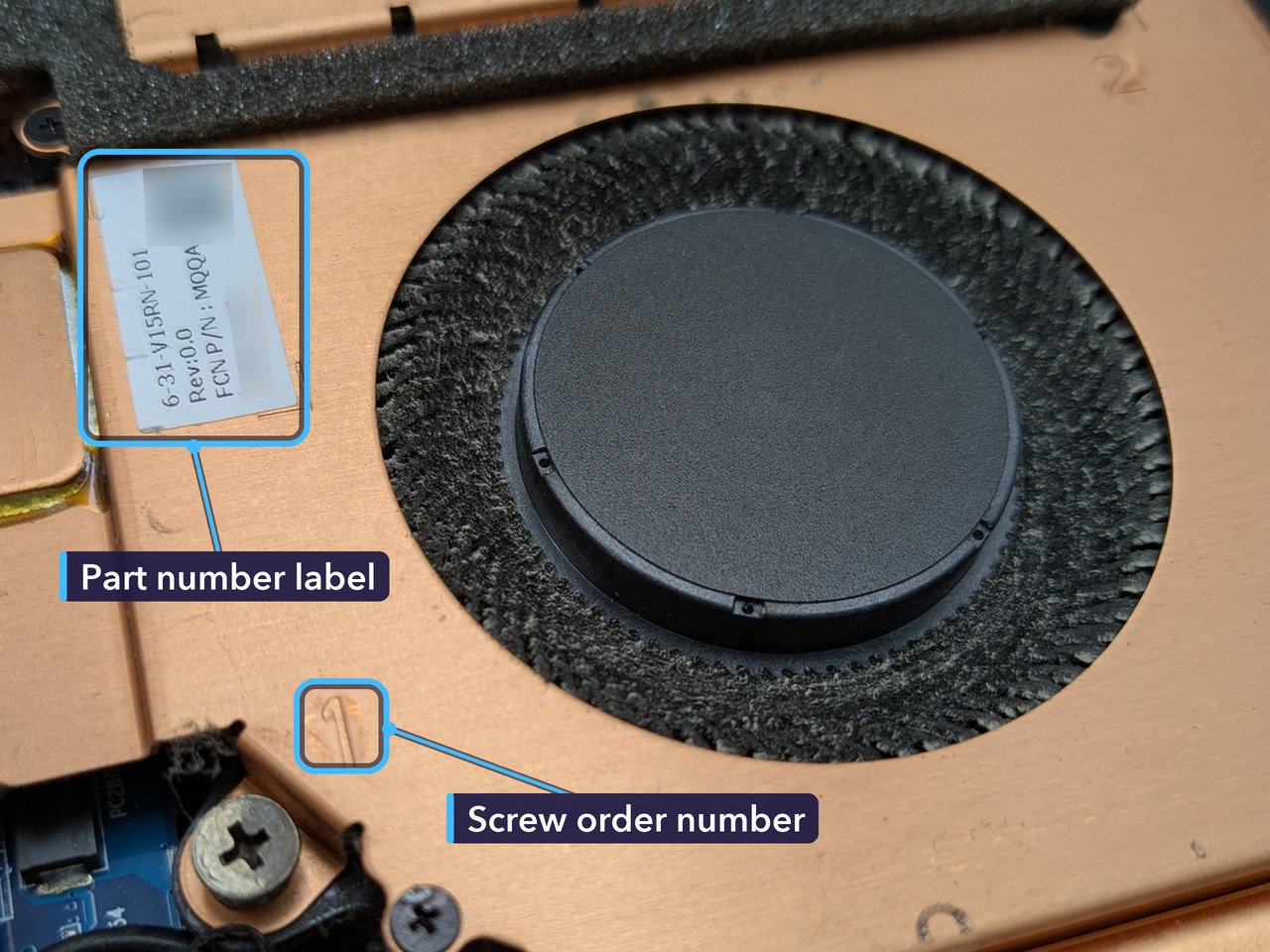
A part number like that is how a technician makes sure a replacement cooler fits, because gaming laptops from one brand often use different coolers for different models. The small numbers stamped into the copper give the order to tighten the screws.
Afterwards we ran a graphics stress test called FurMark, which pushes the graphics chip as hard as it will go. Like many gaming laptops, this one has two graphics chips: a small one built into the processor for everyday jobs, and a powerful one for games, here an NVIDIA GeForce RTX 4050. The test screen shows both, the small one at 3% and the RTX 4050 at 100%.
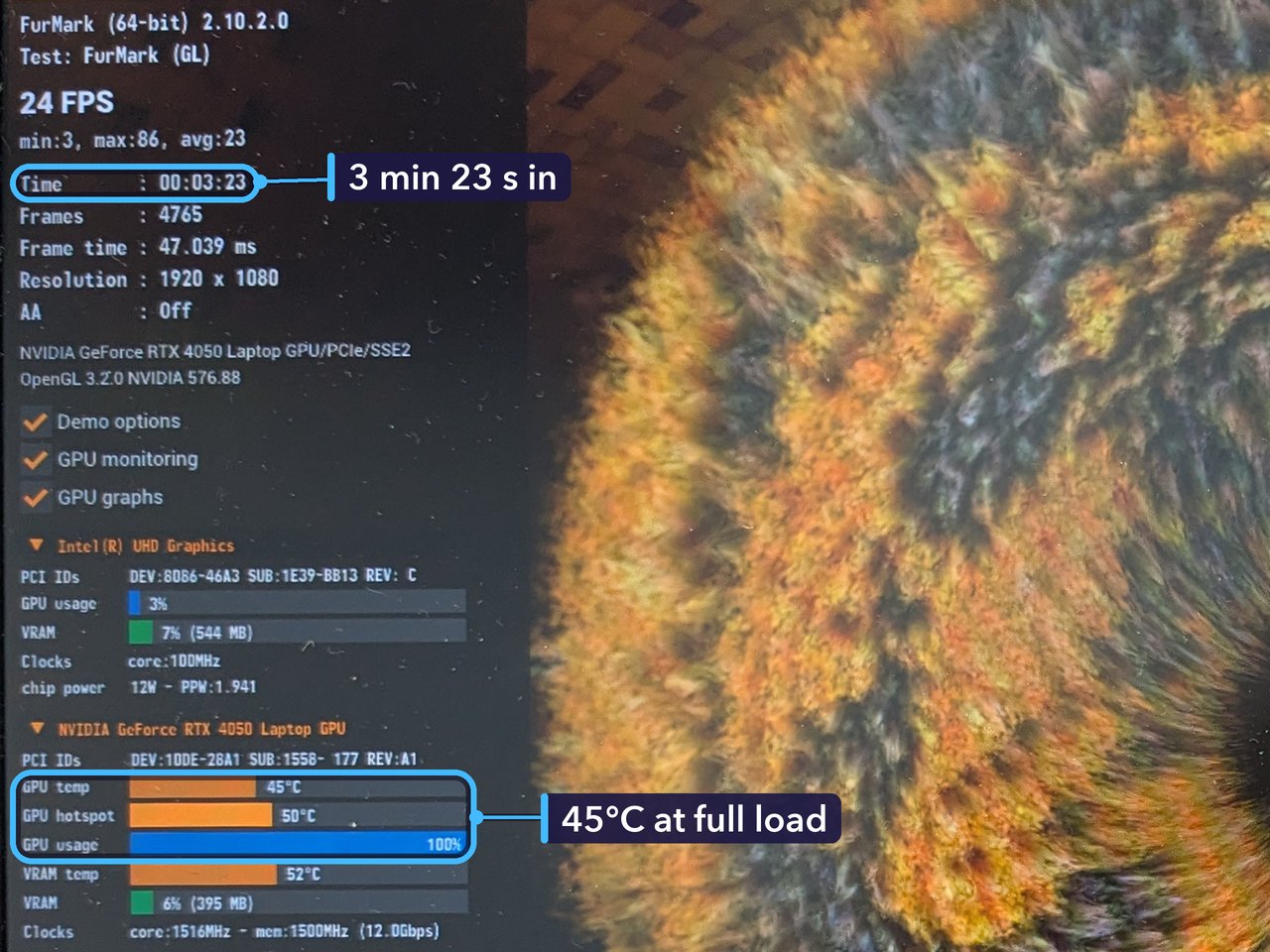
That’s one reading, not a before and after, so it doesn’t show how much cooler the laptop ran. It’s a snapshot of the cooler on the day.
Keeping Your Gaming Laptop Cool
- Use it on a hard, flat surface. Beds, sofas and cushions block the vents underneath and shed fibres that get pulled straight in.
- Leave the vents clear. Don’t push the laptop hard up against a wall.
- Blow dust out of the vents every few months with short bursts of compressed air, with the laptop off and unplugged. Hold the fan still while you do it.
- Listen to it. A fan that’s louder than it used to be means the cooling is working harder than it should.
- Watch for games that stutter or crash after a while, or a laptop that switches itself off. Heat is a common reason.
- Got pets? Check the vents more often, because pet hair goes the same way as dust.
- If it still runs hot after a few years with clear vents, the thermal paste may have dried out. Get it checked.
How Much Did It Cost, and How Long Did It Take?
£89 in total. That was the whole bill. It came in on a Friday just before one o’clock, and we got started that afternoon. By early afternoon on the Saturday it was ready, and the customer collected it less than an hour later.
Every laptop is different. If yours needs more, such as a new fan, the price will change.
Get Your Gaming Laptop Fixed in St Andrews
If your gaming laptop is running hot, getting loud or switching itself off mid-game, bring it in and we’ll take a look. No appointment needed.
You can read more about our computer repairs, or our PC repairs if it’s a desktop that runs hot. A laptop that keeps shutting itself off with clean vents may need a laptop motherboard repair instead.
Repair St Andrews, 1 City Rd, St Andrews, KY16 9XQ. Call 01334 478866 or walk in. Open Monday to Friday 09:30-17:30, Saturday 10:00-17:00.
